Here UOBD2 show you the procedures on how to build connection between Autel MK908P Pro and vehicle by J2534 adapter.
1.Connect the main cable's female adapter to the vehicle data connector on the VCI unit,and tighten the captive screws.
A.for Wireless BT Diagnostic Interface
Autel Scanner Support blog share new autel released info and provide Autel products User Guide.Here you can get how to use autel products and how to solved autel products problems.
2019年6月10日星期一
2019年4月15日星期一
Autel MaxiCOM MK908P,What's Good?
Here is the table about the difference between Autel MaxiCOM MK908P and MaxiSys MS908P.
| Product | MaxiCOM MK908P | MaxiSys MS908P |
| Image | ![]() | ![]() |
| CPU | Samsung Exynos hexa-core Processor | Samsung Exynos hexa-core Processor 1.4GHz |
| IOS | AndroidTM 4.4.2 KitKat | Android 4.0 ICS |
| Memory | 64GB | 32G |
| Touch Screen | 10.1″ 1920*1200 | 9.7″ 1024*768 |
| Retina LCD | LED Capacitive | |
| VCI Connection | USB 2.0/WLAN/BT | USB 2.0/WLAN/BT |
| WIFI | 2.4GHz | 2.4 & 5GHz |
| Internal battery | 15000mAh | 11000mAh |
| 3.8 V | 3.7 V | |
| lithium-polymer | lithium-polymer | |
| battery | battery | |
| Weight(Display) | 3.26 Ib. (1.48kg) | 3.12 Ib. (1.42kg) |
| Camera (Rear) | 8.0 Megapixel, AF with Flashlight | 5.0 Megapixel, AF with Flashlight |
| Wireless VCI | MaxiFlash elite | MaxiFlash elite |
| Oscilloscope | ![]() | ![]() |
| (Add-on) | ||
| Complete OEM | ![]() | ![]() |
| Specific Scanner | ||
| Coverage | ||
| Auto VIN | ![]() | ![]() |
| Maxi fix Cloud | ![]() | ![]() |
| Based Info | ||
| System | ||
| Shop Manager | ![]() | ![]() |
| ECU Coding | Advanced | Advanced |
| ECU Flash | ![]() | ![]() |
| Programming | ||
| 1996-2001 connector kit | ![]() | ![]() |
| Maxi Flash Elite | ![]() | ![]() |
| Diagnostic Target | Passenger vehicles & Light duty trucks | Passenger vehicles & Light duty trucks |
In conclusion:
The MK908P is an upgraded version of MS908P, and the difference between them is that MK908P is equipped with more advanced hardware.
Autel MK908P software language:
English, French, German, Italian, Spanish, Portuguese, Russian, Dutch, Polish, Japanese.
What features and functions does MK908P add?
To well serve the users, Autel MK908P is equipped with a rich array of features and functions in addition to the Diagnostic and Service functions, including Remote Desk, MaxiFix, Shop Manager, Digital Inspection, MaxiScope, etc.
1.Remote Desk:With the simple, fast and secure remote control interface, you can receive ad-hoc remote support from Autel' s support center, colleagues, or friends, by allowing them to control your MaxiCOM tablet on their PC via the TeamViewer software.
2.MaxiFix: This is an additional feature in the cloud which enables users to network and access a database of procedures, repair and diagnostic tools. You are able to interact with fellow technicians and share knowledge via MaxiFix.
3.Digital Inspection & MaxiScope: The diagnostic scan tool can also be used in conjunction with the automotive oscilloscope Autel MP408 to perform electrical and electronic circuit testing and monitor signal activity, and it also supports performing a close vehicle inspection with the Autel digital inspection camera MV105/MV108.
1.Remote Desk:With the simple, fast and secure remote control interface, you can receive ad-hoc remote support from Autel' s support center, colleagues, or friends, by allowing them to control your MaxiCOM tablet on their PC via the TeamViewer software.
2.MaxiFix: This is an additional feature in the cloud which enables users to network and access a database of procedures, repair and diagnostic tools. You are able to interact with fellow technicians and share knowledge via MaxiFix.
3.Digital Inspection & MaxiScope: The diagnostic scan tool can also be used in conjunction with the automotive oscilloscope Autel MP408 to perform electrical and electronic circuit testing and monitor signal activity, and it also supports performing a close vehicle inspection with the Autel digital inspection camera MV105/MV108.
MaxiCOM MK908P support car models:
Chrysler, Dodge, Ford, GM, Jeep, Abarth, Alfa, Citroen, Fiat, Lancia, Opel, Peugeot, Porsche, Renault, Saab, Vauxhall, Volvo, Aston Martin, Audi, Bentley, Benz, Sprinter, BMW, Bugatti, Ferrari, Jaguar, Lamborghini, Land Rover, Maserati, Maybach, Mini, Rolls-Royce, Seat, Skoda, Smart, VW, VW CV, Dacia, Ford EU, LT3, Acura, Daewoo, Daihatsu, Honda, Hyundai, Hyundai CV, Infiniti, Kia, Lexus, Maruti Suzuki, Mazda, Mitsubishi, Nissan, Nissan GTR, Samsung, Scion, Ssang Yong, Subaru, Suzuki, Toyota, Isuzu, Mahindra, Perodua, Proton, TATA, HINO,UD, Fuso
Original Post: Autel MaxiCOM MK908P vs. MaxiSys MS908P
2019年4月3日星期三
How to Use Autel MK908P to Identify Vehicle?
Autel MK908 Pro diagnostic system supports four methods for Vehicle Identification.
1. Auto VIN Scan
2. Manual VIN Input
3. Manual Vehicle Selection
4. OBD Direct Entry
Auto VIN Scan
The MaxiCOM MK908P diagnostic system features the latest VIN-based Auto VIN Scan
function to identify CAN vehicles in just one touch, which allows the technician
to quickly detect vehicles, scan all the diagnosable ECUs on every vehicle and
run diagnostics on the selected system.
To perform Auto VIN Scan
1. Tap the Diagnostics application button from the MaxiCOM Job Menu.
2. Tap the VIN Scan button on the top toolbar.
3. Select Auto Detect. The tester starts VIN scanning on the vehicle’s ECU. Once the test vehicle is successfully identified, the system will guide you to the Vehicle Diagnostics screen directly.
In some cases when users have selected the vehicle brand instead of performing Auto VIN Scan in the first place, the system still provides an option for vehicle VIN scan.
Select Automatic Selection and the system will proceed to acquire VIN information automatically or allow users to input the VIN manually.
Manual VIN Input
For some vehicles that do not support the Auto VIN Scan function, the MaxiCOM diagnostic system allows you to enter the vehicle VIN manually, or simply take a photo of the VIN sticker for quick vehicle identification.To perform Manual VIN Input
1. Tap the Diagnostics application button from the MaxiCOM Job Menu.
2. Tap the VIN Scan button on the top toolbar.
3. Select Manual Input.
4. Tap the input box and enter the correct VIN.
5. Tap Done. The vehicle will be identified in a few seconds, and once the matching is successful, the system will guide you to the Vehicle Diagnostics screen directly.
6. Tap Cancel to exit Manual Input.
Manual Vehicle Selection
When the vehicle’s VIN is not automatically retrievable through the vehicle's ECU, or the specific VIN is unknown, you can choose to select the vehicle manually.
Step-by-step Vehicle Selection
This mode of vehicle selection is menu driven; you simply follow the screen prompts and make a series of choices. Each selection you make advances you to the next screen. A Back button at the lower right corner of the screen returns you to the previous screen. Exact procedures may vary somewhat by various vehicles being serviced.
For more information about Autel MK908 Pro,please check here:
http://www.uobdii.com/wholesale/autel-maxicom-mk908.html
1. Auto VIN Scan
2. Manual VIN Input
3. Manual Vehicle Selection
4. OBD Direct Entry
Auto VIN Scan
The MaxiCOM MK908P diagnostic system features the latest VIN-based Auto VIN Scan
function to identify CAN vehicles in just one touch, which allows the technician
to quickly detect vehicles, scan all the diagnosable ECUs on every vehicle and
run diagnostics on the selected system.
To perform Auto VIN Scan
1. Tap the Diagnostics application button from the MaxiCOM Job Menu.
2. Tap the VIN Scan button on the top toolbar.
3. Select Auto Detect. The tester starts VIN scanning on the vehicle’s ECU. Once the test vehicle is successfully identified, the system will guide you to the Vehicle Diagnostics screen directly.
In some cases when users have selected the vehicle brand instead of performing Auto VIN Scan in the first place, the system still provides an option for vehicle VIN scan.
Select Automatic Selection and the system will proceed to acquire VIN information automatically or allow users to input the VIN manually.
Manual VIN Input
For some vehicles that do not support the Auto VIN Scan function, the MaxiCOM diagnostic system allows you to enter the vehicle VIN manually, or simply take a photo of the VIN sticker for quick vehicle identification.To perform Manual VIN Input
1. Tap the Diagnostics application button from the MaxiCOM Job Menu.
2. Tap the VIN Scan button on the top toolbar.
3. Select Manual Input.
4. Tap the input box and enter the correct VIN.
5. Tap Done. The vehicle will be identified in a few seconds, and once the matching is successful, the system will guide you to the Vehicle Diagnostics screen directly.
6. Tap Cancel to exit Manual Input.
Manual Vehicle Selection
When the vehicle’s VIN is not automatically retrievable through the vehicle's ECU, or the specific VIN is unknown, you can choose to select the vehicle manually.
Step-by-step Vehicle Selection
This mode of vehicle selection is menu driven; you simply follow the screen prompts and make a series of choices. Each selection you make advances you to the next screen. A Back button at the lower right corner of the screen returns you to the previous screen. Exact procedures may vary somewhat by various vehicles being serviced.
For more information about Autel MK908 Pro,please check here:
http://www.uobdii.com/wholesale/autel-maxicom-mk908.html
2018年7月11日星期三
How to Replace Battery for Autel PowerScan PS100?
Autel PS100 is a powerful electrical system diagnosis tool.Featuring AVOmeter, test light, built-in flashlight, short circuit
indicator, relay/component tester, continuity tester and bad ground
indicator, the PowerScan is truly the ultimate in power and
affordability, allowing users to check circuitry in one single step.Autel Tool
How to Replace Battery for Autel PowerScan PS100?
Remove the worn switch with a pry tool. Be careful when applying force.
Make sure to install the switch straight and press until flush with casing.
It is recommended when buying you get two. This will fix your tool now and give you a spare so you won‟t experience any down time in the future.
src:http://www.uobdii.com/wholesale/autel-powerscan-ps100-electrical-system-diagnostic-tool.html
How to Replace Battery for Autel PowerScan PS100?
Remove the worn switch with a pry tool. Be careful when applying force.
Make sure to install the switch straight and press until flush with casing.
It is recommended when buying you get two. This will fix your tool now and give you a spare so you won‟t experience any down time in the future.
src:http://www.uobdii.com/wholesale/autel-powerscan-ps100-electrical-system-diagnostic-tool.html
2018年3月15日星期四
How to register Autel MK808TS TPMS Tool
This post show the guide on how to register Autel MaxiCOM MK808TS.
Autel MK808TS TPMS Tool Registration:
Register your MaxiCOM Diagnostic Device to access the Support platform and download update. To register the diagnostic device
1. Visit the website: http://pro.autel.com.
2. On the Sign In page, input your account ID and other information to log in, if you already have an account.
3. If you are a new member to Autel and do not have an account, click the Create Autel ID button on the left side.
4. Enter the required information in the input fields, read through Autel’s Terms and Conditions and tick on Agree, and then click Create Autel ID at the bottom to continue.
5. The online system will automatically send a confirmation email to the registered email address. Validate your account by clicking the link provided through the mail. A product registration screen opens.
6. Access the tool’s About section in the Settings application to retrieve the tablet’s serial number and password.
7. Select the product model of your device, enter the product serial number and password on the Product Registration screen, and click Submit to complete the registration procedure.
http://www.uobdii.com
Autel MK808TS TPMS Tool Registration:
Register your MaxiCOM Diagnostic Device to access the Support platform and download update. To register the diagnostic device
1. Visit the website: http://pro.autel.com.
2. On the Sign In page, input your account ID and other information to log in, if you already have an account.
3. If you are a new member to Autel and do not have an account, click the Create Autel ID button on the left side.
4. Enter the required information in the input fields, read through Autel’s Terms and Conditions and tick on Agree, and then click Create Autel ID at the bottom to continue.
5. The online system will automatically send a confirmation email to the registered email address. Validate your account by clicking the link provided through the mail. A product registration screen opens.
6. Access the tool’s About section in the Settings application to retrieve the tablet’s serial number and password.
7. Select the product model of your device, enter the product serial number and password on the Product Registration screen, and click Submit to complete the registration procedure.
http://www.uobdii.com
2017年5月15日星期一
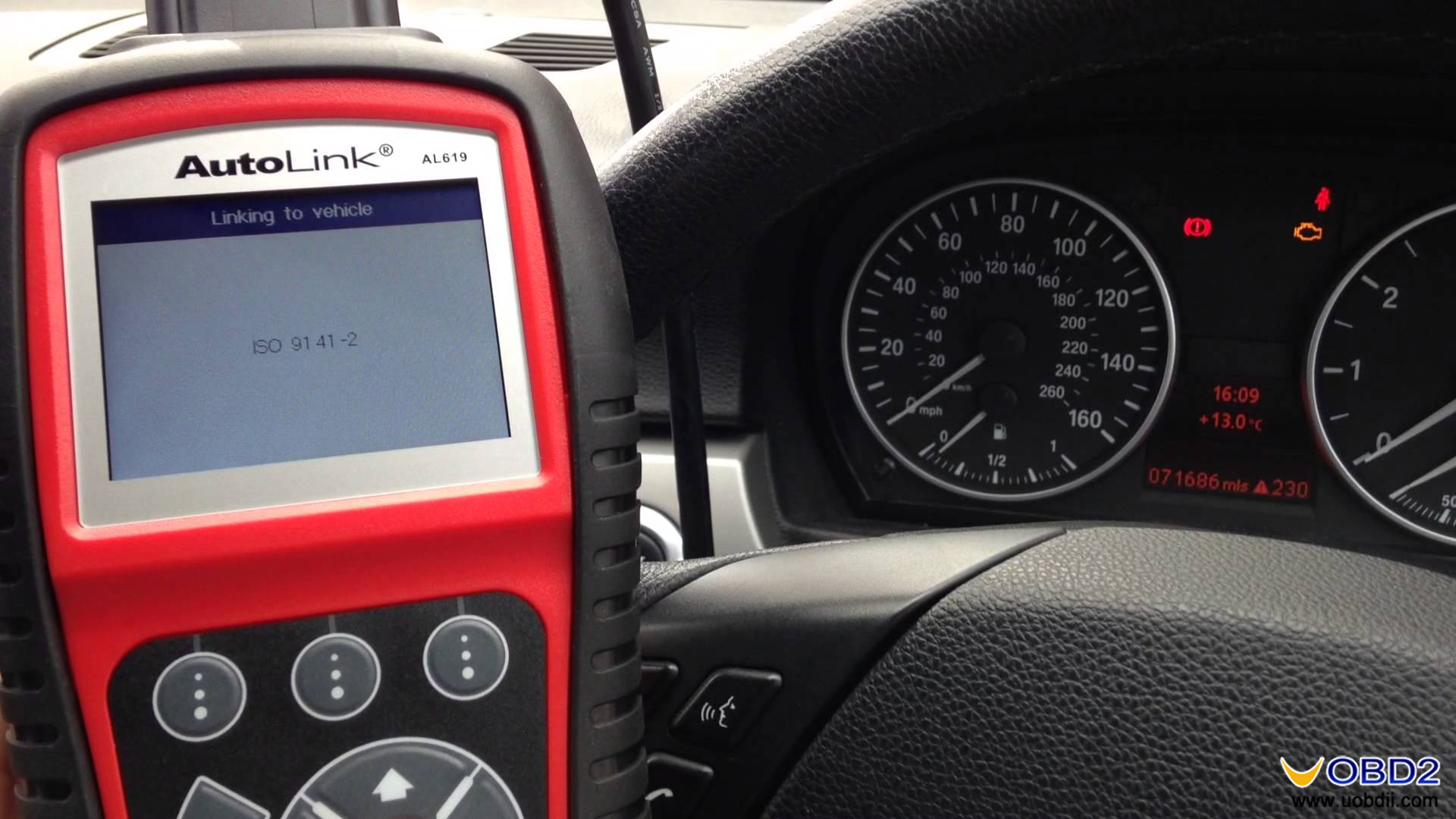
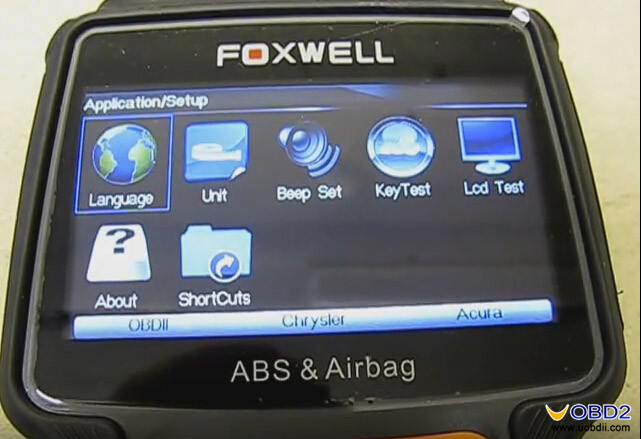
ABS SRS reset tools: AutoLink AL619 & Foxwell NT630 test reports
Here firstly share the universal ABS SRS reset tools AutoLink AL619 and Foxwell NT630 test reports on what’s working functions. Hope it helps.
AutoLink al619 test reports:
ABS coverage --- confirmed
SRS coverage--- confirmed
Global OBDII--- confirmed
C.A.N capability--- confirmed
Manufacturer specific DTCs--- confirmed
I/M readiness status--- confirmed
Freeze Frame--- confirmed
Datastream--- confirmed
Data Graphing--- confirmed
Vehicle information--- confirmed
On-screen DTC definitions--- confirmed
Built-in DTC Lookup--- confirmed
DTC cause/tips--- confirmed
Advanced Mode 6--- confirmed
Visual/Audible feedback--- confirmed
Multilingual (German French Spanish Portuguese Polish Italian Dutch Russian) --- confirmed
Internet updatable--- confirmed
Print via PC--- confirmed
I/M readiness Key --- No work
Starting & charging system test --- No work
Circuit voltage --- No work
Circuit resistance --- No work
Circuit current --- No work
Battery test --- No work
Price: $109.5 DHL free shipping (Available global warehouse: HK/USA/AU)
Automobile repair

Foxwell NT630 al619 test reports:
EOBD engine coverage (2001+ petrol cars, 2004+ diesel cars) --- confirmed
Live sensor data from supported systems --- confirmed
ABS coverage on worldwide vehicles --- confirmed
Airbag coverage on worldwide vehicles --- confirmed
Multilingual support --- confirmed
Internet updatable (18months free update on www.foxwelltech.com)--- confirmed
Print via PC--- confirmed
Specific makes/ year works ok:
Analyze and graph the O2 sensors…OK
- 2015 Mercedes S550 W222 model turn off an airbag light on OK.
- 2004 Hyundai Sonata AirBag diagnosis OK
- 2002 Mercedes Benz CLK320 clears the SRS light and malfunction warning OK
- Ford Falcon BA V8 ABS diagnosis OK
- Truck GMC the 2005 year reset the airbag OK
-1997 Pontiac Grand Am perform gear tension relief sequence OK
- KIA Sedona 2008 airbag light reset OK
- Jeep Grand Cherokee ZJ diesel 2.5 1997 reset SRS Codes OK
It lists error codes
Tell me what's wrong with my air bag light
Reset the codes
Worked fine with my VW, Dodge, Ford
Read Subaru SRS codes
Read 2 Pontiac's codes
The live data is what you would expect.
Being able to store codes on the included flash disc is quite nice.
In a word, Foxwell NT630 is a solid unit without being too heavy and comes in a very nice hard case. It has a thorough diagnostic for everything you can imagine. Overall this is a fine car scanner.
Foxwell NT630 price: $179 DHL free shipping (www.uobdii.com)

AutoLink al619 test reports:
ABS coverage --- confirmed
SRS coverage--- confirmed
Global OBDII--- confirmed
C.A.N capability--- confirmed
Manufacturer specific DTCs--- confirmed
I/M readiness status--- confirmed
Freeze Frame--- confirmed
Datastream--- confirmed
Data Graphing--- confirmed
Vehicle information--- confirmed
On-screen DTC definitions--- confirmed
Built-in DTC Lookup--- confirmed
DTC cause/tips--- confirmed
Advanced Mode 6--- confirmed
Visual/Audible feedback--- confirmed
Multilingual (German French Spanish Portuguese Polish Italian Dutch Russian) --- confirmed
Internet updatable--- confirmed
Print via PC--- confirmed
I/M readiness Key --- No work
Starting & charging system test --- No work
Circuit voltage --- No work
Circuit resistance --- No work
Circuit current --- No work
Battery test --- No work
Price: $109.5 DHL free shipping (Available global warehouse: HK/USA/AU)
Automobile repair

Foxwell NT630 al619 test reports:
EOBD engine coverage (2001+ petrol cars, 2004+ diesel cars) --- confirmed
Live sensor data from supported systems --- confirmed
ABS coverage on worldwide vehicles --- confirmed
Airbag coverage on worldwide vehicles --- confirmed
Multilingual support --- confirmed
Internet updatable (18months free update on www.foxwelltech.com)--- confirmed
Print via PC--- confirmed
Specific makes/ year works ok:
Analyze and graph the O2 sensors…OK
- 2015 Mercedes S550 W222 model turn off an airbag light on OK.
- 2004 Hyundai Sonata AirBag diagnosis OK
- 2002 Mercedes Benz CLK320 clears the SRS light and malfunction warning OK
- Ford Falcon BA V8 ABS diagnosis OK
- Truck GMC the 2005 year reset the airbag OK
-1997 Pontiac Grand Am perform gear tension relief sequence OK
- KIA Sedona 2008 airbag light reset OK
- Jeep Grand Cherokee ZJ diesel 2.5 1997 reset SRS Codes OK
It lists error codes
Tell me what's wrong with my air bag light
Reset the codes
Worked fine with my VW, Dodge, Ford
Read Subaru SRS codes
Read 2 Pontiac's codes
The live data is what you would expect.
Being able to store codes on the included flash disc is quite nice.
In a word, Foxwell NT630 is a solid unit without being too heavy and comes in a very nice hard case. It has a thorough diagnostic for everything you can imagine. Overall this is a fine car scanner.
Foxwell NT630 price: $179 DHL free shipping (www.uobdii.com)

2017年5月10日星期三
How to use Autel Autolink AL619 to read code
AutoLink AL619 is built to help you determine why the Malfunction Indicator Light or the ABS / SRS warning light is on. Featuring ABS/SRS system auto diagnosis, TFT color display, built-in speaker, troubleshooter code tips, the tool is truly ultimate in power and affordability. And in this article i wil share you how to use Autel Autolink AL619 to read code on your vehicle.
1) Use UP/DOWN scroll button to select Read Codes from
Diagnostic Menu and press OK button. (Figure 5.3 )
2) Use the UP/DOWN scroll button to select Stored Codes,
Pending Codes or Permanent Codes from the Read Codes
menu and press the OK button. (Figure 5.4 )
If there is not any Diagnostic Trouble Code, the display indicates
“No (pending) codes are stored in the module!” Wait a few
seconds or press any key to return to previous screen.
NOTE: Permanent Codes function is available for merely
vehicles supporting the CAN protocols.
3) View DTCs and their definitions on screen.
4) If more than one DTC is found, use the UP/DOWN scroll
button to check all the codes.If retrieved DTCs contain any manufacturer specific or enhanced.(http://www.car-auto-repair.com)
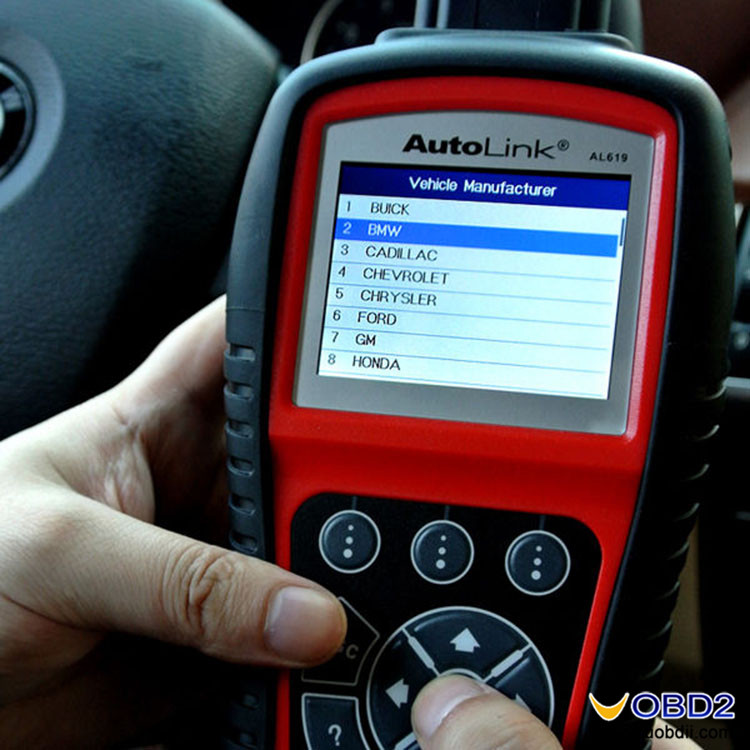
codes, a “Manufacturer specific codes are found! Press any key
to select vehicle make!” message comes up prompting you to
select vehicle manufacturer to view DTC definitions. Use
UP/DOWN scroll button to select manufacturer and then press
OK button to confirm.
If the manufacturer of your vehicle is not listed, use the
UP/DOWN scroll button to select Other and press the OK
button.
More info about Autel Autolink AL619:http://www.uobdii.com/wholesale/next-generation-obdii-can-scan-tool-autolink-al619.html
Article from OBD2 BLOG:How to use Autel Autolink AL619 to read code
1) Use UP/DOWN scroll button to select Read Codes from
Diagnostic Menu and press OK button. (Figure 5.3 )
2) Use the UP/DOWN scroll button to select Stored Codes,
Pending Codes or Permanent Codes from the Read Codes
menu and press the OK button. (Figure 5.4 )
If there is not any Diagnostic Trouble Code, the display indicates
“No (pending) codes are stored in the module!” Wait a few
seconds or press any key to return to previous screen.
NOTE: Permanent Codes function is available for merely
vehicles supporting the CAN protocols.
3) View DTCs and their definitions on screen.
4) If more than one DTC is found, use the UP/DOWN scroll
button to check all the codes.If retrieved DTCs contain any manufacturer specific or enhanced.(http://www.car-auto-repair.com)
codes, a “Manufacturer specific codes are found! Press any key
to select vehicle make!” message comes up prompting you to
select vehicle manufacturer to view DTC definitions. Use
UP/DOWN scroll button to select manufacturer and then press
OK button to confirm.
If the manufacturer of your vehicle is not listed, use the
UP/DOWN scroll button to select Other and press the OK
button.
More info about Autel Autolink AL619:http://www.uobdii.com/wholesale/next-generation-obdii-can-scan-tool-autolink-al619.html
Article from OBD2 BLOG:How to use Autel Autolink AL619 to read code
订阅:
博文 (Atom)